
6 real use cases
Choose a use case, download its inputs and try the listed settings in the tool above. Compare your work with the actual exported result.
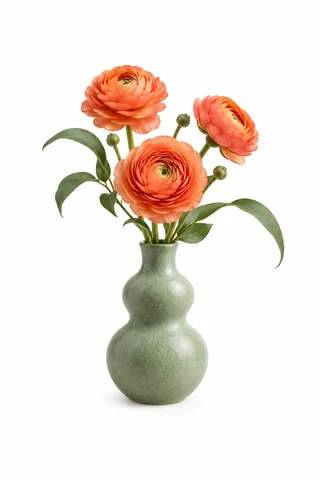
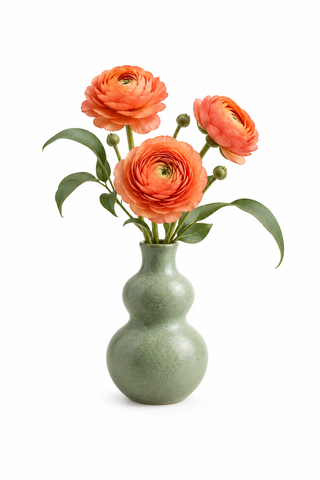
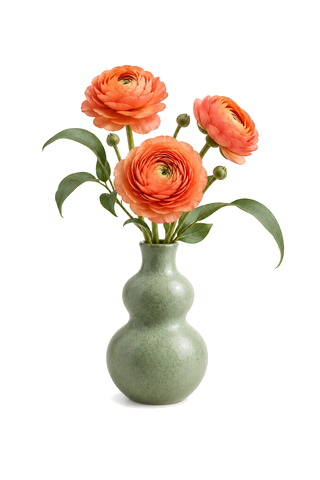
Pick the white vase background and remove it
Pick the white background and choose transparency. Keep the flowers, vase and unmatched shadows.

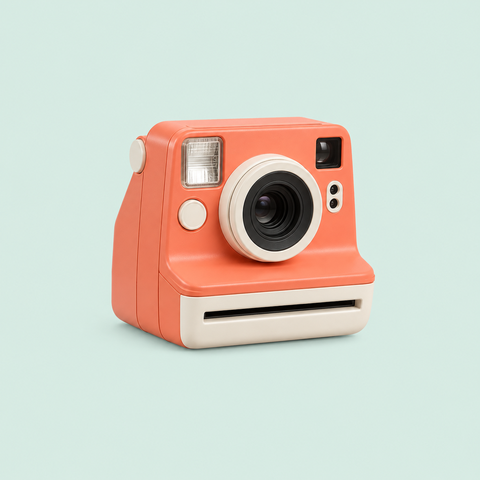
Sample a reference poster for a camera backdrop
Pick the camera background, upload a lake-poster reference, and sample its warm sun color. The reference only supplies a color. Similar pale buttons and trim also change because matching covers the whole image.



Unify surfboard and luggage accents in blue
Pick the yellow surfboard and red luggage separately, then replace both with blue. Tolerance includes nearby shades while keeping the green body. Similar metal highlights may also change.


Give trees and lake separate poster colors
Assign brown to the tree color and blue to the lake color. Rules always match the original, so recolored pixels cannot cascade into another rule. Natural gradients can show replacement boundaries; small palette shifts work best.


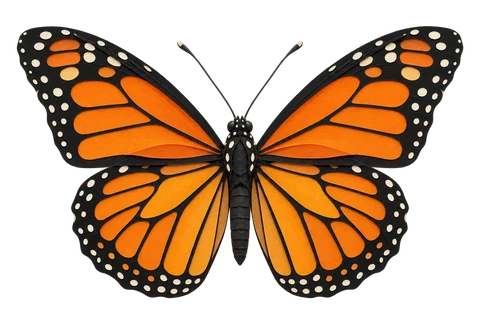
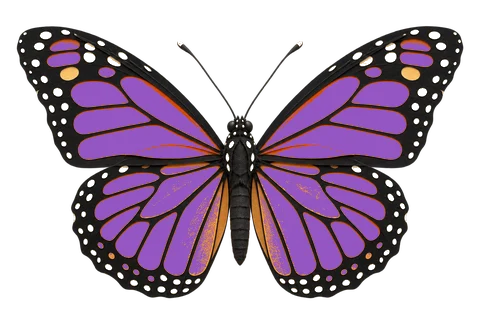
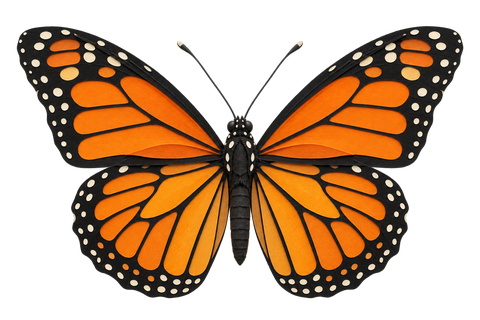
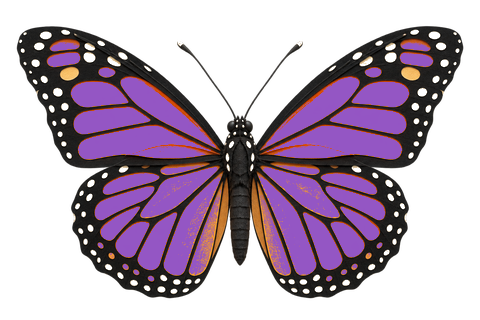
Recolor butterfly wings and remove pale dots
Replace orange wing areas with purple and make the pale dots transparent in a separate rule, preserving black details and existing cutouts.
Sample a deeper red from the ribbon itself
Pick both colors from the same ribbon: replace the selected bright red range with the deeper red in its folds, retaining cutouts and alpha.










What this tool does
Original and reference eyedroppers
Pick source and replacement colors directly from images. A pixel magnifier helps you aim; a color selector is also available.
Replace colors together or individually
Use up to 12 source colors with one shared output or separate colors and transparency. Overlaps use the closest source color, ties use list order, and replacement colors never cascade.
Local processing
Originals, references and results are handled in your browser. Download a new PNG without uploading or overwriting your source.
How to use
- Choose your original image and use the source-color eyedropper to pick from the enlarged image
- Add more source colors and choose one shared result or separate replacements
- Choose an output color, sample the original or an uploaded reference, or select transparency
- Adjust tolerance and feathering, inspect the preview, and download PNG
Formats and limits
Best for logos, icons and illustrations. Matches colors, not objects; similar colors elsewhere may also change.
Frequently asked questions
Are my files uploaded?
No. Processing happens on your device. The website, fonts and dependencies may still use the network; offline use is not guaranteed.
Will my original files change?
No. Both the original and reference stay unchanged. The result downloads as a new PNG.
What are the limitations?
Best for logos, icons and illustrations. Matches colors, not objects; similar colors elsewhere may also change.
What if I do not know the color value?
Click an eyedropper and pick a visible pixel from the original or a reference. Arrow keys move one pixel, Enter confirms, and Escape cancels. Fully transparent pixels cannot supply a visible color.