
Add padding to images without cropping
Fit images into a square or custom canvas without cropping. Add solid, transparent or blurred padding, then download PNG, JPG or WebP locally.
Drop images here or paste a screenshot
Static JPG, PNG or WebP · 20 MiB each · up to 20 images
Free · No sign-up · Files processed on your device
Result preview—
Add an image to preview the padded canvas.
Try an example
Solid color
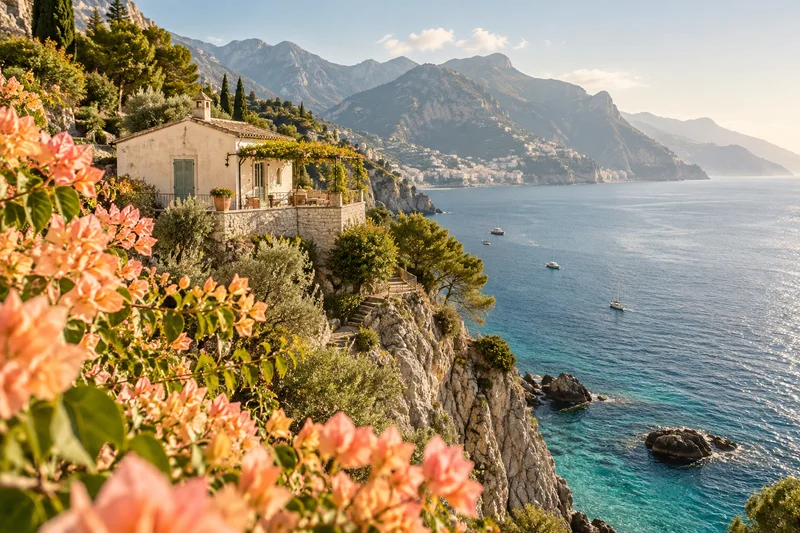
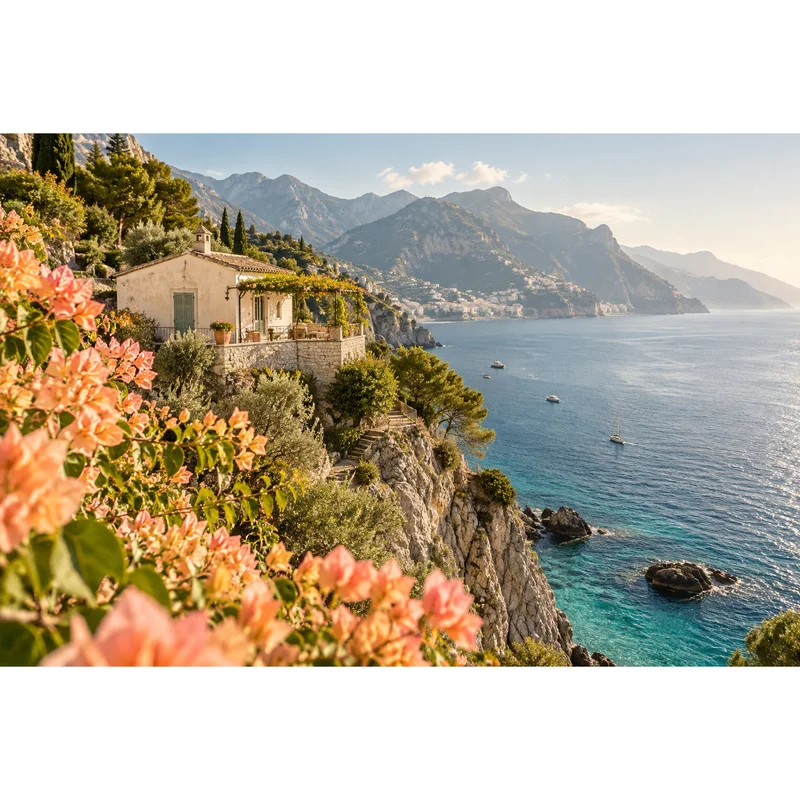
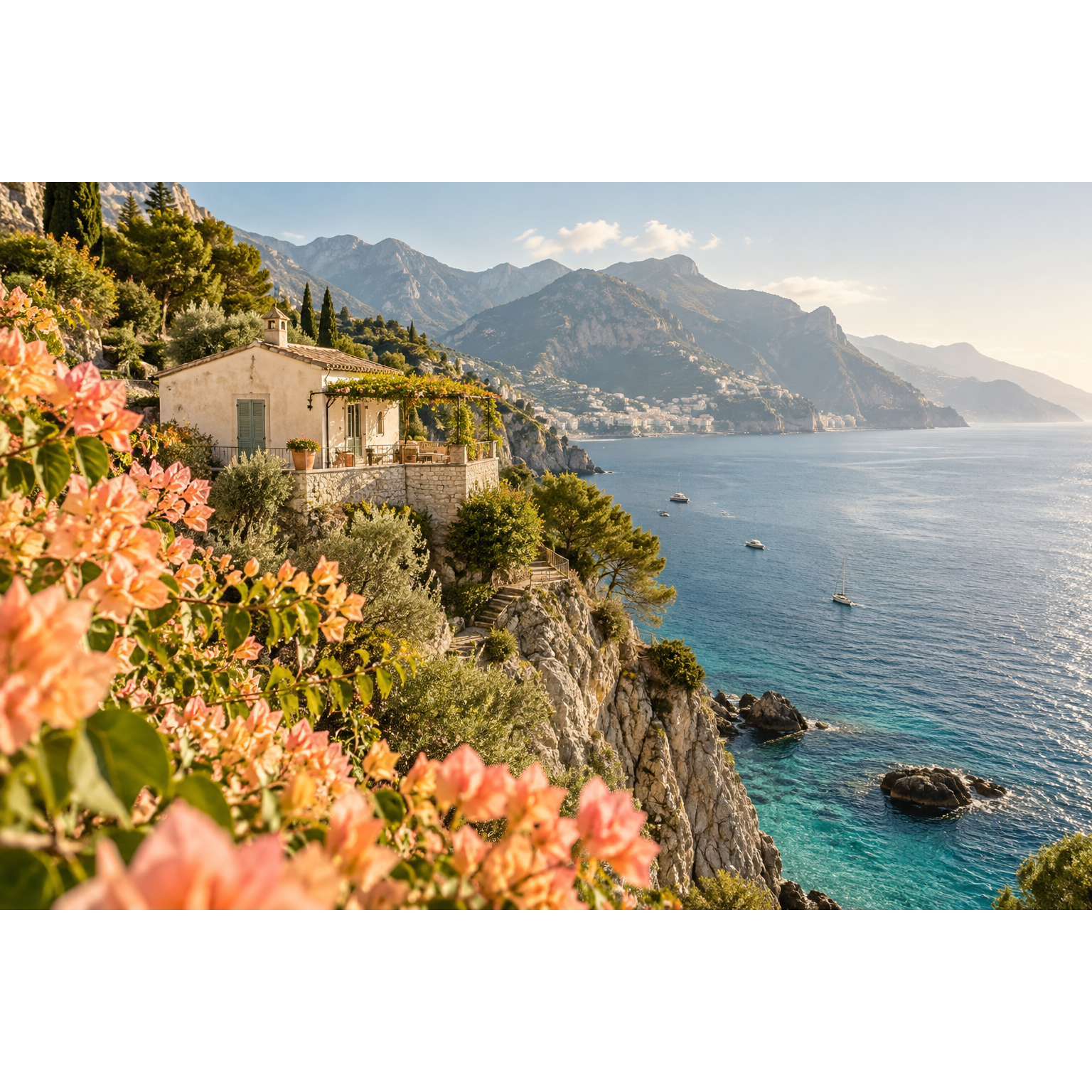
Transparent
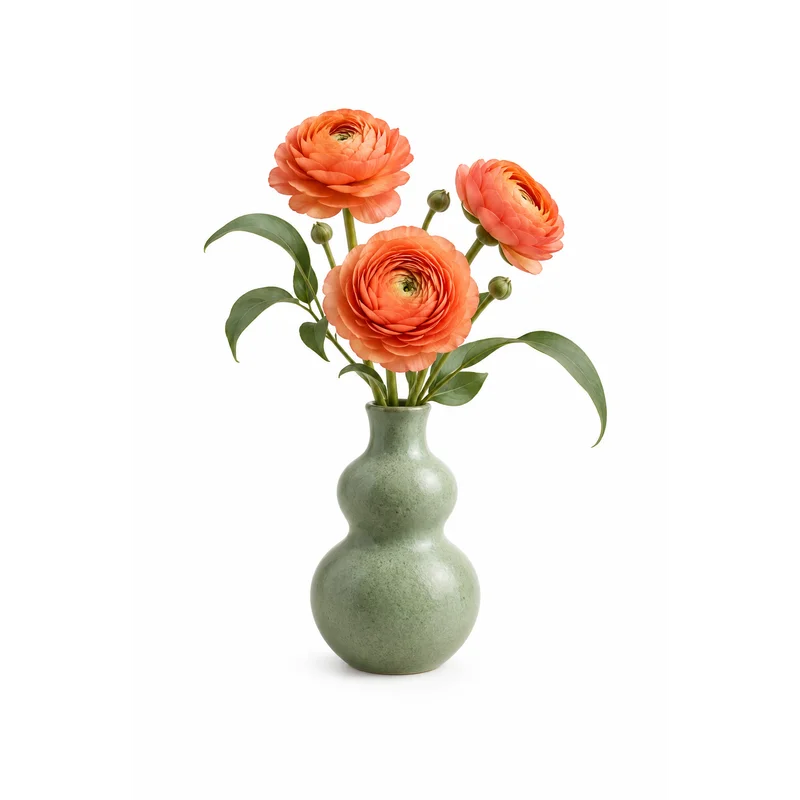
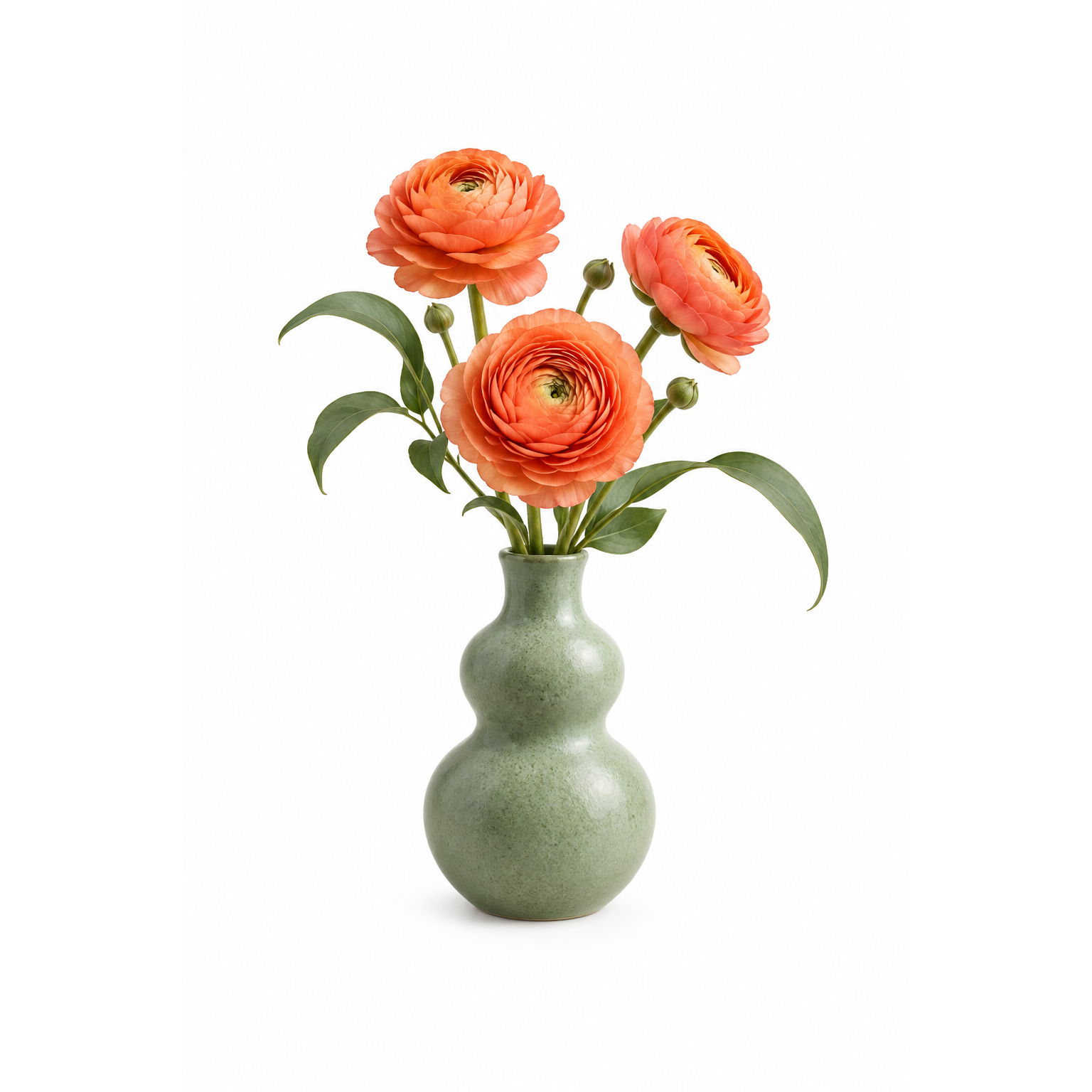
Blurred image
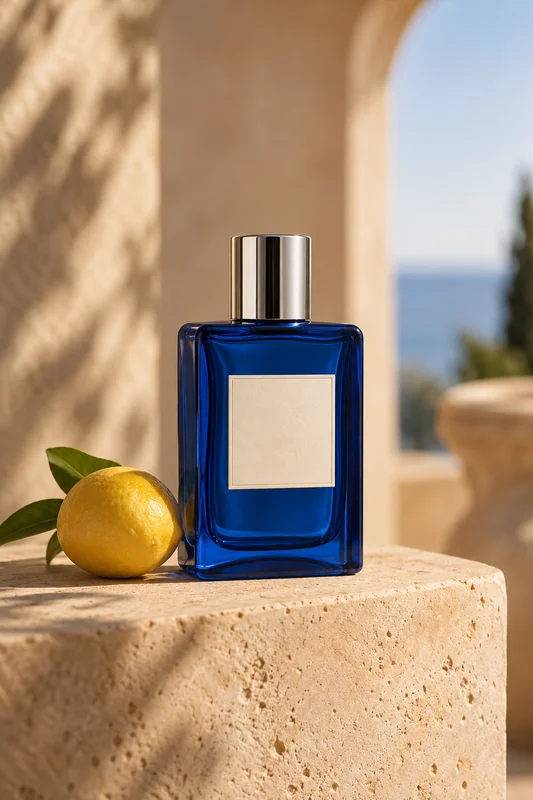
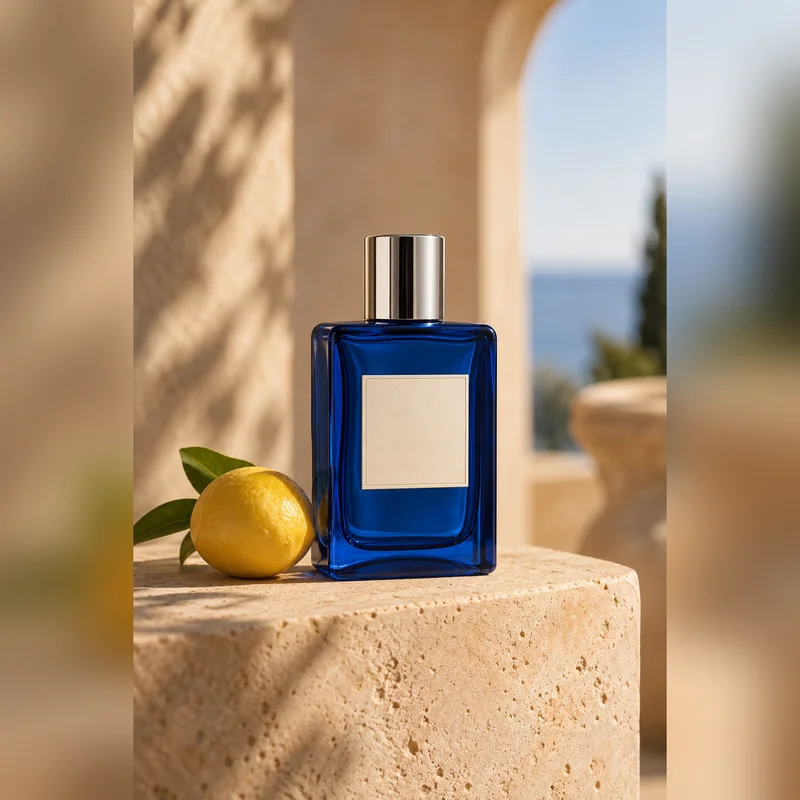
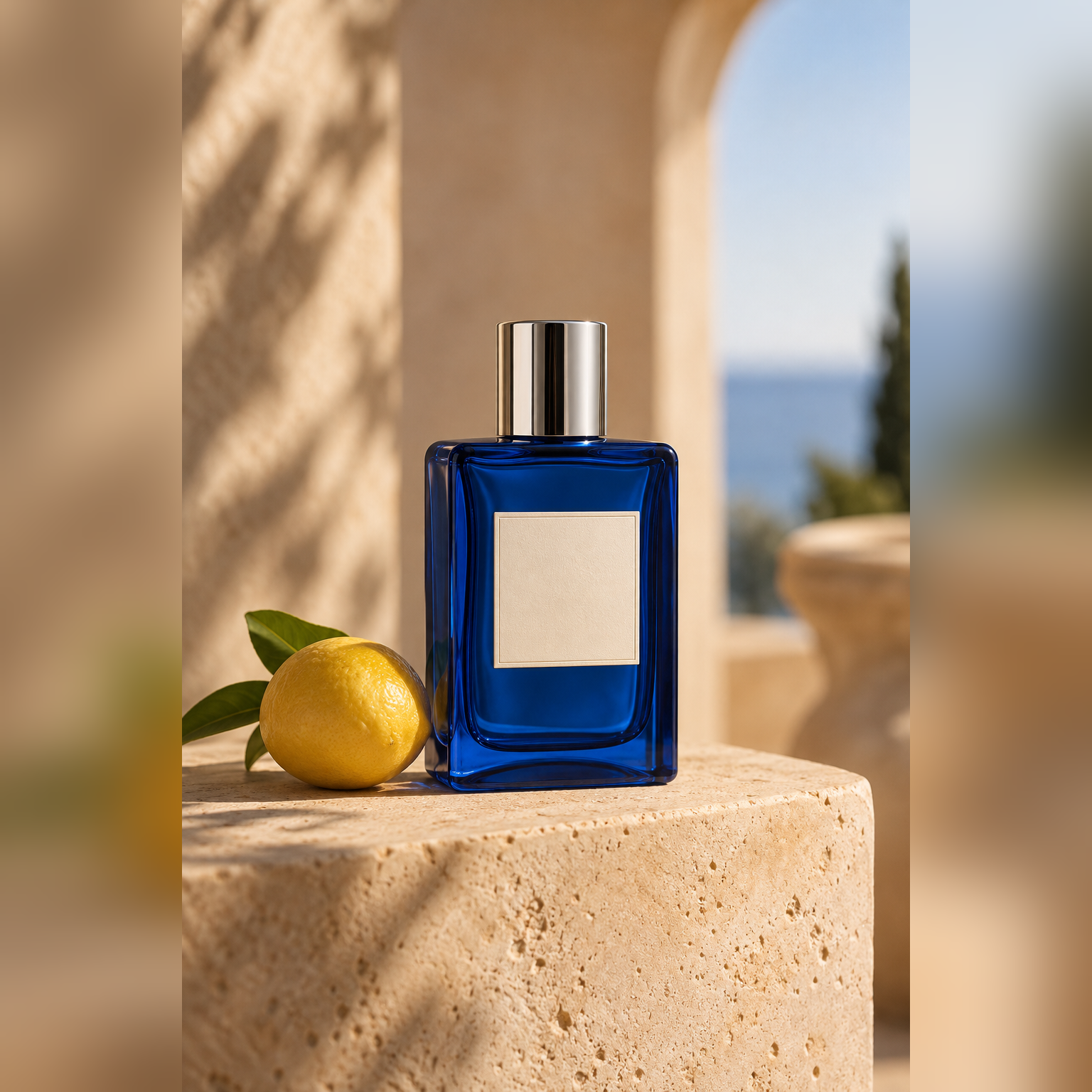
Set output dimensions

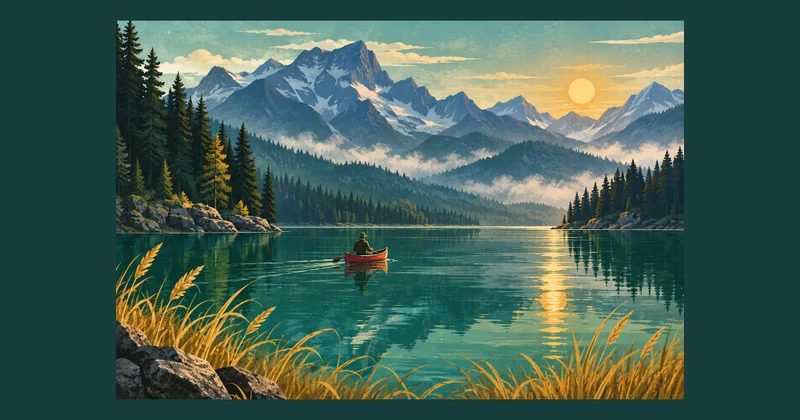
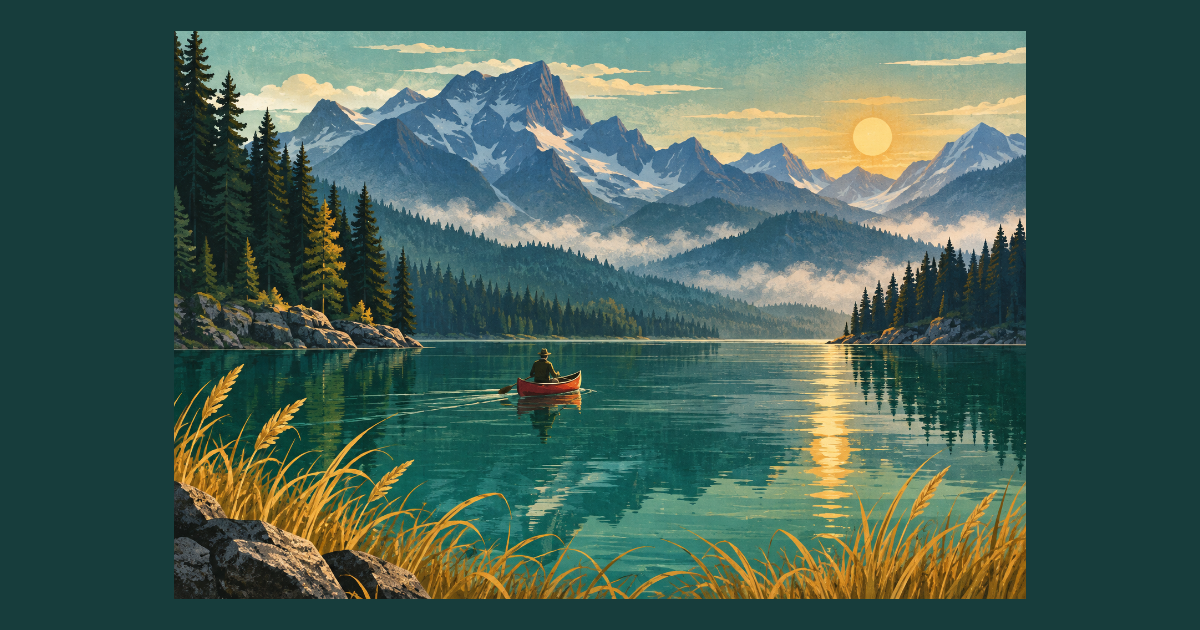
How to add image padding
- Choose one or more static JPG, PNG or WebP images.
- Select an aspect ratio or output dimensions, then choose the background and position.
- Check the preview and final pixel dimensions. Download one image or a ZIP.
Formats and limits
Process up to 20 images locally, with a 20 MiB limit per file and 100 MiB per batch. Inputs are limited to 25 million pixels. Outputs are limited to 16 million pixels and 8192 pixels per side. Animated images are not supported. Adding padding does not recover missing detail or guarantee a smaller file.
Image padding questions
- Will this crop or stretch my photo?
- No. Keep-original-size mode expands the canvas without resizing the image. Fixed-size mode fits the full image proportionally within the selected canvas.
- Can I make the padding transparent?
- Yes. Select Transparent and export PNG or a supported WebP. JPG has no transparency, so it uses your selected fill color.
- Are my files uploaded?
- Image processing takes place in your browser. You can download the result without an account. Continuing to another tool temporarily stores the result locally for the handoff.