
Upload images
Click or drag files to add mosaic/blur
⚠ Mosaic and blur only make things hard to read — the information is still in the image, and published research and tools can recover it. For real privacy, use Solid fill.
No images uploaded.
Blur and Pixelate Images
Cover selected areas of a photo with mosaic, blur or a solid color. Adjust the area and effect, then inspect the exported image before sharing.
Image Mosaic Features
Mosaic Pixelation
Add mosaic pixelation effect to convert image areas into pixel blocks. Use the mosaic tool to hide sensitive information and protect privacy. Adjust mosaic intensity to control pixel block size.
Blur Effect
Add Gaussian blur effect to soften image areas. Create natural blur effects with the online mosaic tool. Adjust blur intensity for different censoring needs.
Shape Mode
Precisely censor areas using shapes like rectangles, rounded rectangles, ellipses, and triangles. Lock aspect ratio and adjust corner radius. Use the mosaic tool to accurately cover specific regions.
Brush Mode
Freely paint mosaic or blur effects with brush mode. Adjust brush size to flexibly handle irregular areas. The online mosaic tool supports freehand censoring.
Batch Processing
Add mosaic or blur effects to multiple images simultaneously. Supports batch processing up to 20 images. Use batch mosaic for efficient bulk processing.
Undo/Redo
Undo and redo operations to modify mosaic areas anytime. Copy and paste mosaic regions to improve editing efficiency. The mosaic tool provides flexible editing control.
Zoom Editing
Zoom in/out for precise editing. Pan the view after zooming. Use the online mosaic tool to accurately process detailed areas.
How to Use the Image Mosaic Tool
Upload images to mosaic
Click upload or drag image files. Supports JPG, PNG, WebP, BMP formats, max 50MB per image. Batch upload multiple images to add mosaic effects together.
Add mosaic or blur effects
Choose mosaic or blur effect type. Select shape mode for precise censoring or brush mode for freehand painting. Adjust intensity to control effect strength. Draw on the image to mark areas to censor. Supports undo/redo and copy/paste regions.
Download processed images
After confirming the mosaic effect, click download to save processed images. Single images download directly, multiple images download as ZIP. No watermark output, ready to use.
Blur and Pixelate Images · Example 1
These files were processed with this tool or its shared processing code. Compare the source, settings and downloadable results.
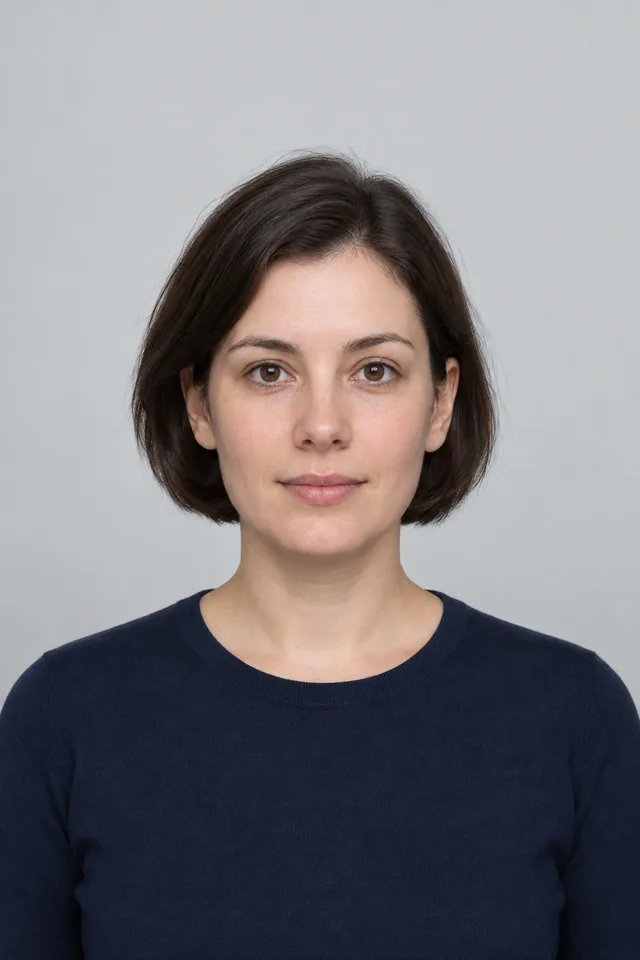
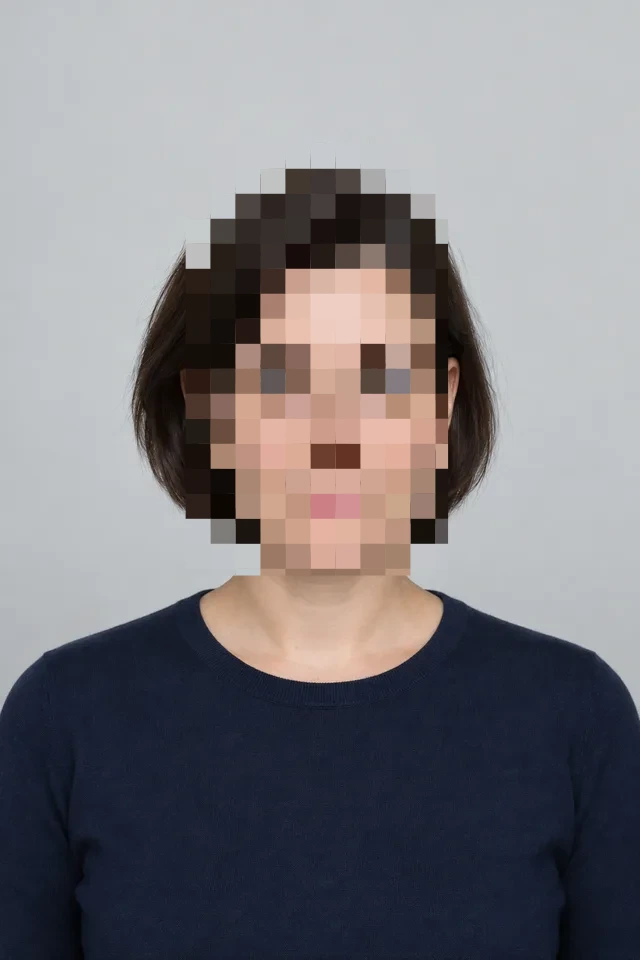
Image Mosaic Tips
Choose Appropriate Intensity
Blur or mosaic may leave information recognizable. For sensitive text or numbers, use an opaque solid cover and inspect the exported file at full size.
Shape Mode for Quick Censoring
Use shape mode for regular areas. Rectangles suit ID cards and text, ellipses suit faces. The online mosaic tool provides multiple shape options.
Brush for Irregular Areas
Use brush mode for irregular areas. Adjust brush size to fit different regions. Use the mosaic tool's brush feature for flexible censoring.
Zoom for Precision
Zoom in to precisely edit detailed areas. Ensure all sensitive information is completely censored. The online mosaic tool supports zoom functionality.
Copy/Paste Regions
When multiple identical areas need censoring, use copy/paste. Improves editing efficiency and maintains consistent effects. The mosaic tool supports region copying.
Batch Process Similar Images
Use batch mosaic for same type of images. Set once, process in batch, greatly improving work efficiency.
Blur and Pixelate Images · More examples
These files were processed with this tool or its shared processing code. Compare the source, settings and downloadable results.
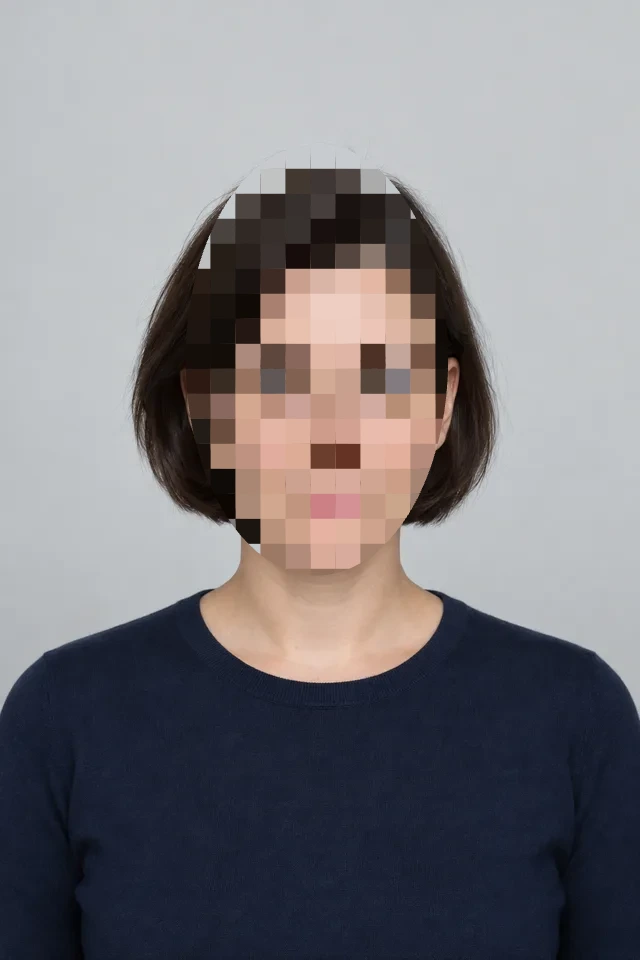
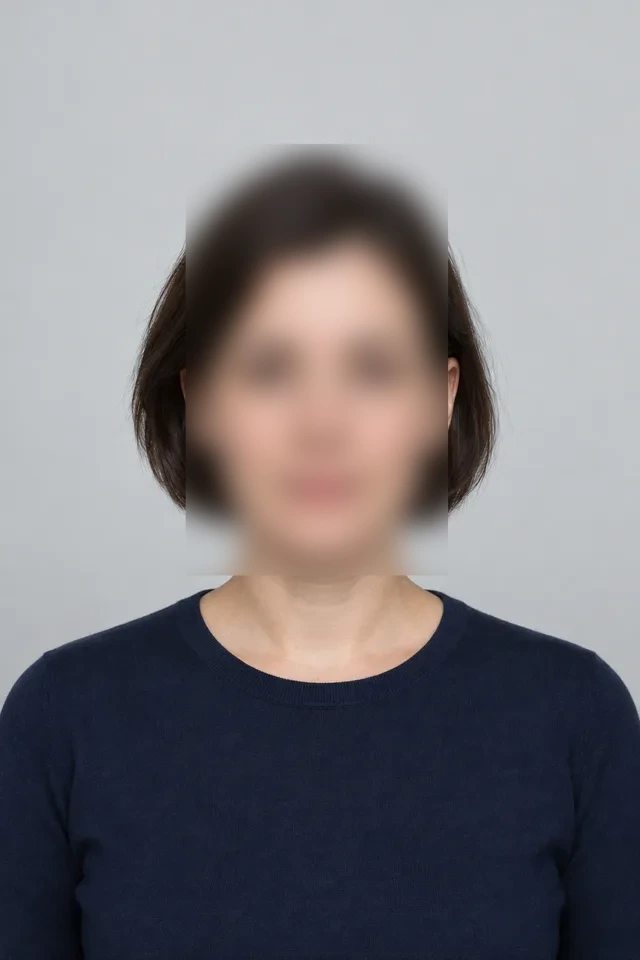
Image Mosaic FAQ
More Image Processing Tools
Need other image processing features? Try these professional tools:
Add Watermark
Add a text or image watermark to one or several pictures. Adjust position, opacity, rotation and repetition, then review the exported files.
Image Editor
Crop, rotate and resize a picture in your browser. Add text or shapes, draw on the image, and adjust colors before saving a copy.
Compress Image
Compress JPG, PNG and WebP images in your browser. Compare the output size and appearance before downloading individual files or a ZIP.
Crop Image
Crop a photo to a custom area or fixed aspect ratio. Rotate, flip and reposition the image, then download the cropped result.