
A local DOCX-to-PDF workflow
Local document preview
Read a DOCX file in an isolated browser preview without sending it to a conversion server. Selectable text is rendered as text, not a screenshot.
Use your browser’s PDF printer
The Print / Save as PDF button opens the system print workflow. Choose the PDF destination and review print settings before saving.
Review before saving
Check text, tables, images and page breaks. Rendering uses browser layout and available fonts, so it may differ from Microsoft Word.
Real examples
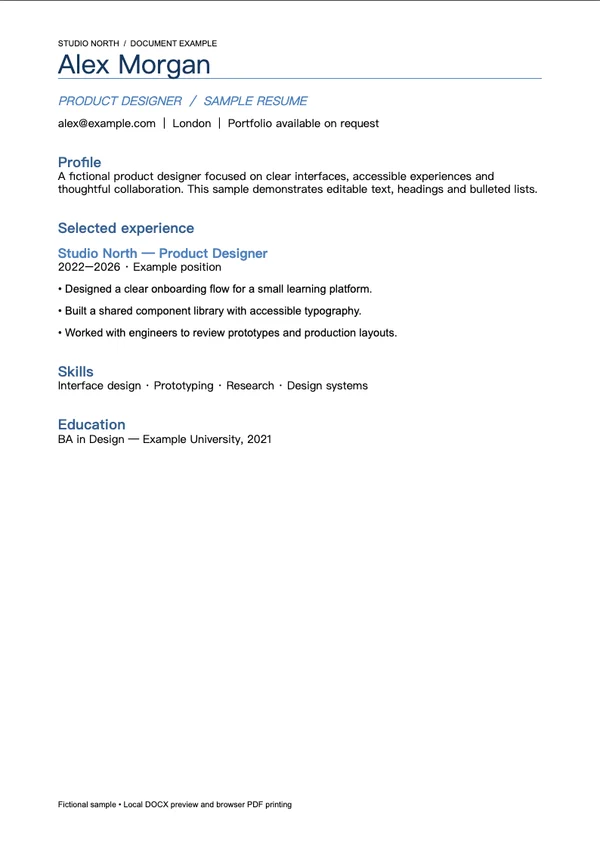
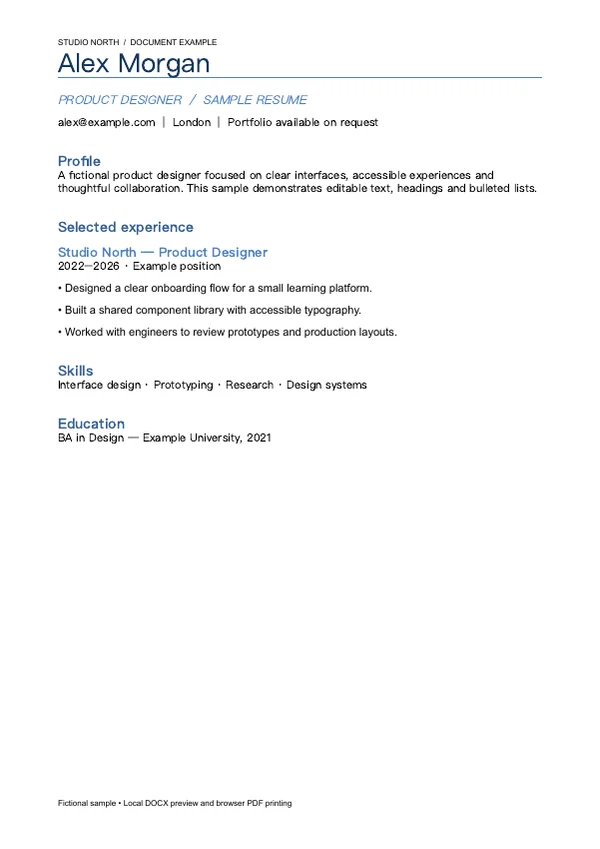
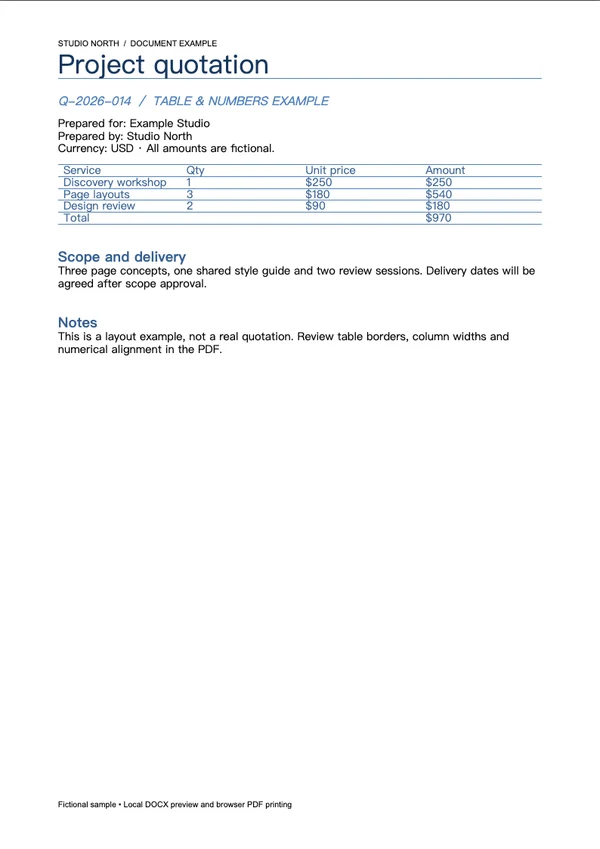
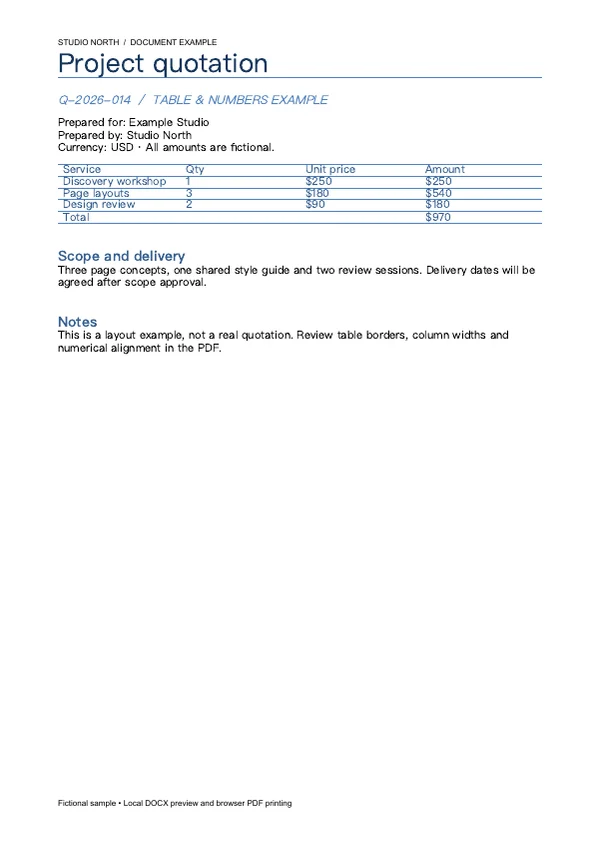
These files were processed with this tool or its shared processing code. Compare the source, settings and downloadable results.
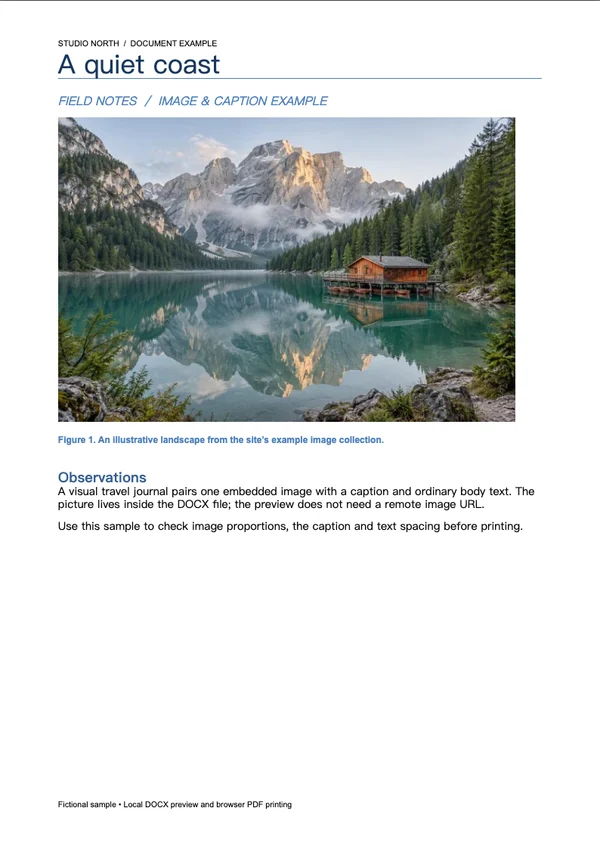
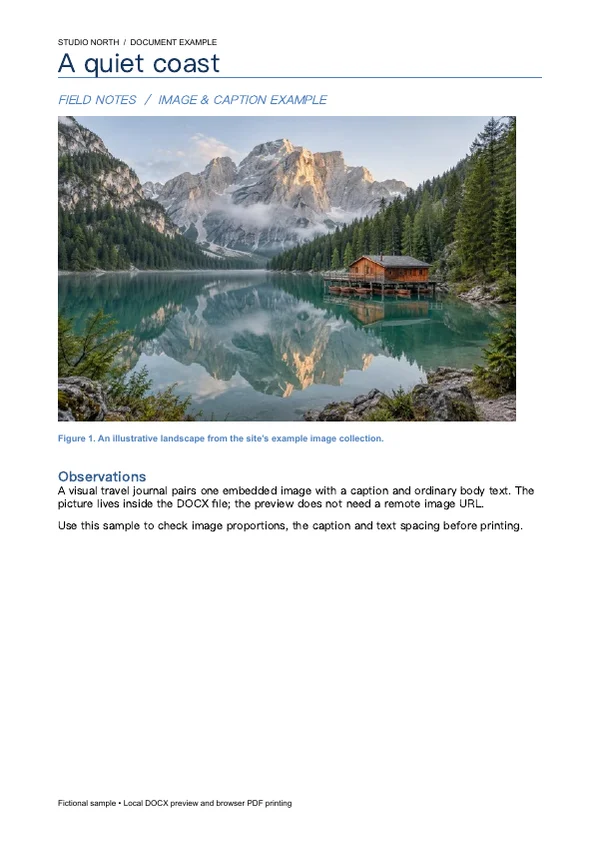
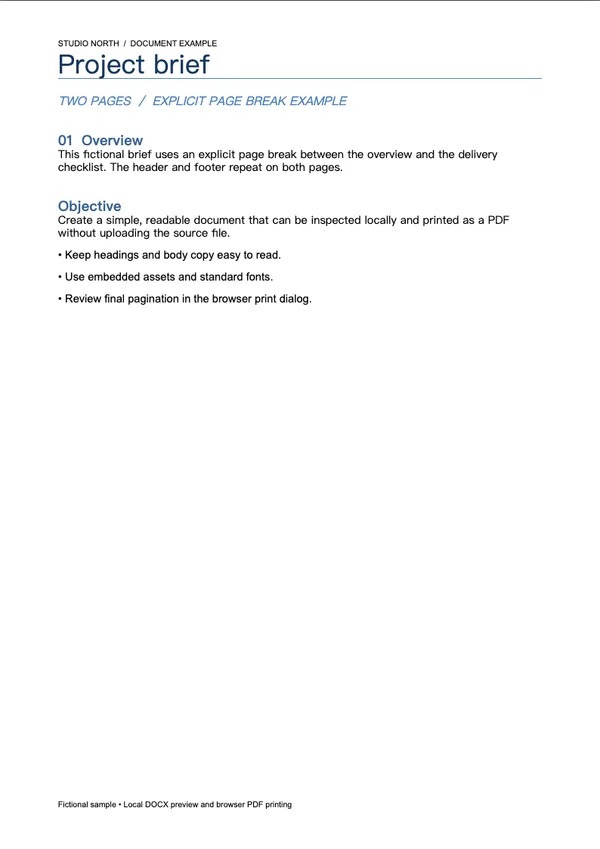
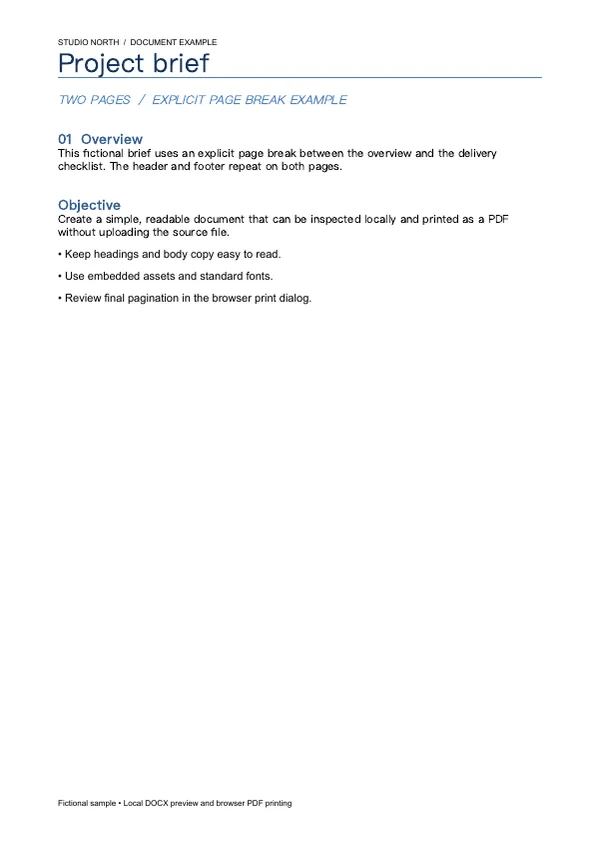
How to save a DOCX document as PDF
Choose a DOCX document
Select or drop one unencrypted DOCX file up to 20 MiB. Legacy DOC files are not supported.
Review the local preview
Wait for document resources to load. Check the layout, fonts, images and tables, and scroll through the preview.
Print and choose Save as PDF
Click Print / Save as PDF. Select Save as PDF in the print dialog, inspect the final pagination and save the file.
Formatting and file limitations
This tool uses browser-based DOCX rendering, not the Microsoft Word layout engine. Missing fonts, complex tables, charts, floating objects, headers, footers and page breaks can change. It does not support legacy .doc, encrypted files, macros, embedded HTML or external resources. DOCX files are limited to 20 MiB, 80 MiB unpacked, 20 MiB per entry and 2000 entries. The preview uses document paper sizes; the print dialog determines final paper size and pagination. No automatic download occurs.
Word to PDF questions
Are my Word files uploaded?
No. The DOCX file is inspected and rendered locally in the browser. The tool does not send the document to a conversion server.
Will the PDF look exactly like Microsoft Word?
Not always. The preview uses browser layout and fonts available on your device. Complex formatting can differ. Review both the document preview and the print preview before saving.
Can I convert old .doc or password-protected files?
No. Save the file as an unencrypted .docx in Word or a compatible editor first. Macro-enabled documents and embedded HTML are also unsupported.
Does the PDF preserve selectable text?
The document is rendered as HTML text rather than a full-page image, so browser PDF output can retain selectable text. Text already embedded in images remains image content.
Why does the button open a print dialog?
PDF creation uses your browser’s local print workflow. Choose Save as PDF as the destination. The tool cannot silently choose a save location or confirm whether you saved or cancelled.