
Image to Text
Pull the text out of screenshots, photos and scanned PDFs. Recognition runs in your browser, so nothing is uploaded. Handles several files at once. Free, no signup.
What This Tool Does
Reads printed text well
Accuracy depends on image clarity, language, layout and lighting. Check the extracted text against the original, especially names, dates and numbers.
Nine languages
English, Chinese (both simplified and traditional), Japanese, Korean, German, French, Spanish and Italian. Non-English options load English alongside, because real documents are full of order numbers, emails and amounts written in Latin characters.
Scanned PDFs, page by page
A PDF is opened and each page is read in turn, so a multi-page scan comes back as text without you exporting the pages yourself first.
Several files at once
Drop in a folder's worth of screenshots and they queue up. If one of them fails, the rest carry on — a single bad file does not stop the batch.
Copy or download
Take the result straight to the clipboard, or download it as a.txt file. With several files, each one is labelled so you can tell the results apart.
How to Extract Text from an Image
Add your files
Drag in images or a PDF, or click to browse. JPG, PNG, WebP, GIF, BMP and PDF all work, up to 50MB each.
Pick the language
Choose the language of the text in the picture — not the language of this page. Getting this right matters more than anything else for accuracy.
Copy or download the text
Results appear as each file finishes. Copy everything to the clipboard, or download it as a.txt file.
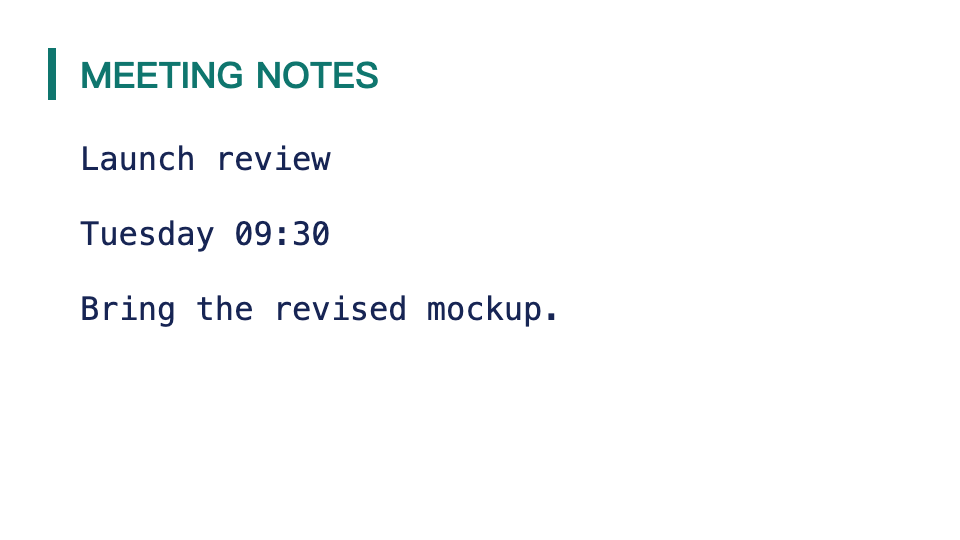
Image to Text · Example 1
These files were processed with this tool or its shared processing code. Compare the source, settings and downloadable results.
Getting Better Results
Set the language first
This is the single biggest factor. Reading Chinese text with the English model set will produce nonsense, no matter how clear the image is.
Crop to just the text
Photos of a page usually include the desk, a hand, part of the room. Cropping down to the paper alone gives the engine less to be confused by.
Even lighting beats bright lighting
A shadow falling across half the page hurts more than the picture being a bit dark overall. Move so the light is even rather than strong.
Keep the lines horizontal
Text that runs at an angle is read noticeably worse. Straightening the photo before uploading is worth the few seconds.
Use the original file
A screenshot of a screenshot, or a photo forwarded through several chat apps, has been compressed each time. The original is always sharper.
Printed text, not handwriting
This works on printed and typed text. Handwriting is a genuinely different problem and the results will disappoint you.
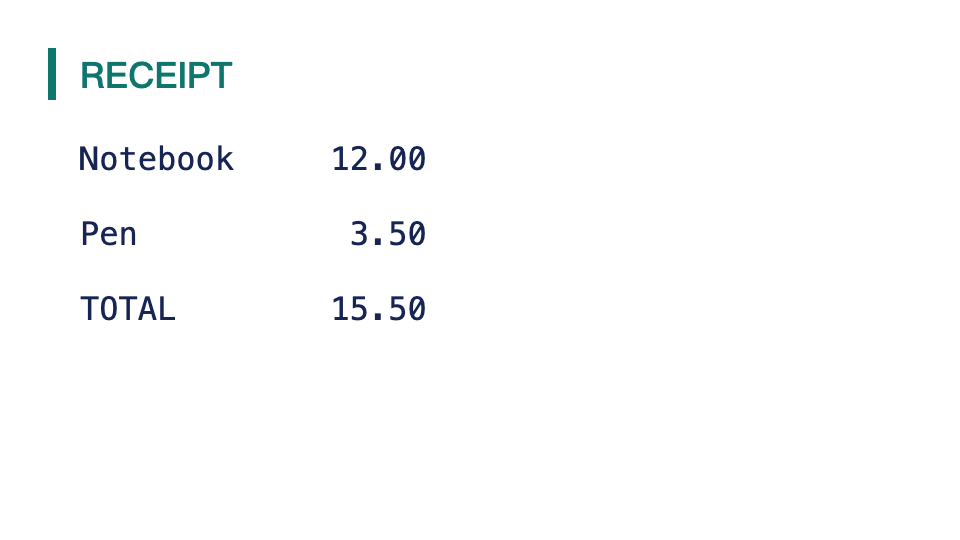
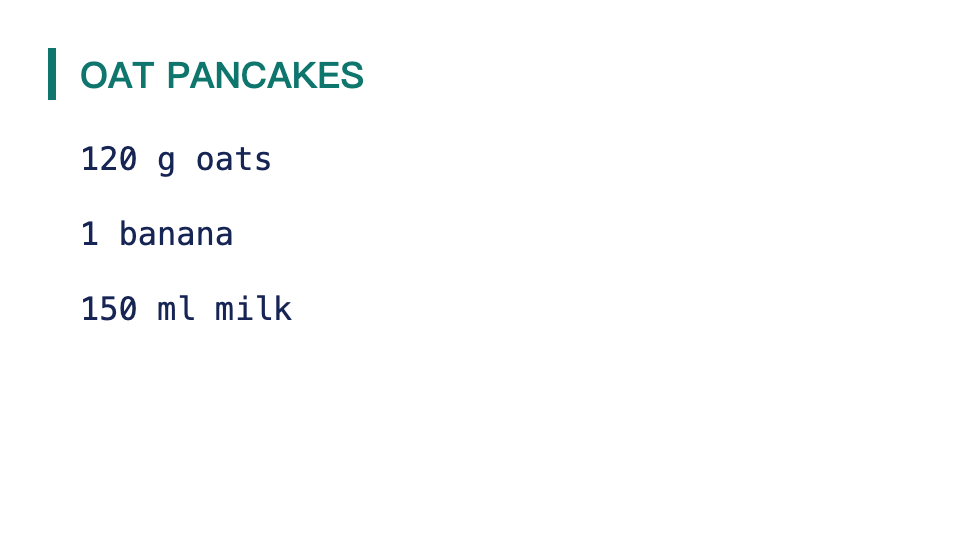
Image to Text · More examples
These files were processed with this tool or its shared processing code. Compare the source, settings and downloadable results.
Questions About Extracting Text
Related Image Tools
Other tools for getting things out of images
QR Code Decoder
Read a QR code from an image or your camera. Inspect and copy the decoded text, link or other content in your browser.
PDF to JPG
Render PDF pages as JPG images. Choose the render scale, export individual pages or a long image, and download the results individually or as a ZIP.
Image Info
Check pixel dimensions, format, file size and available EXIF metadata. Convert pixels to print dimensions using a chosen DPI value.
Image to ASCII
Turn an image into ASCII characters. Adjust character width, character set and color, then copy the text or download TXT and PNG output.