
Photo Collage Maker
Arrange photos in a grid, long strip, free layout or shape. Adjust spacing, crop each image, add annotations and export the collage as PNG or JPG.
Image Collage Features
Grid Collage Templates
Use 1-20 photo templates including 3x3 grids and creative layouts. Drag to reorder and preview quickly.
Long Photo Stitching
Create vertical or horizontal long collages with alignment options. Stitch up to 50 images into one long image.
Freeform Layout Merge
Set rows and columns, drag to merge cells, and build custom collage layouts. Save and reuse layout history.
Shape Collage
Pick a preset shape — heart, star, paw and more — or type 520, LOVE or a name, and the grid is carved along that outline.
Canvas & Spacing Control
Customize canvas ratio, spacing, margin, roundness, and background color for a clean, consistent collage style.
Crop, Rotate, Flip, Zoom
Fine-tune each image with crop, rotation, flip, and zoom to control the visible area precisely.
Text, Arrow, Sticker
Add text labels, arrows, and stickers to explain steps, highlight details, or decorate your collage.
Filters & Mosaic
Apply preset filters or customize colors. Use mosaic/blur annotations to hide sensitive areas.
Preview & HD Export
Preview the result, lock canvas ratio, and export PNG/JPG with scale options for high-quality output.
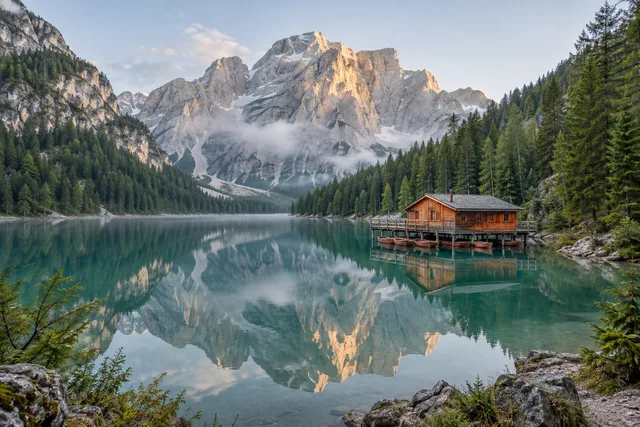
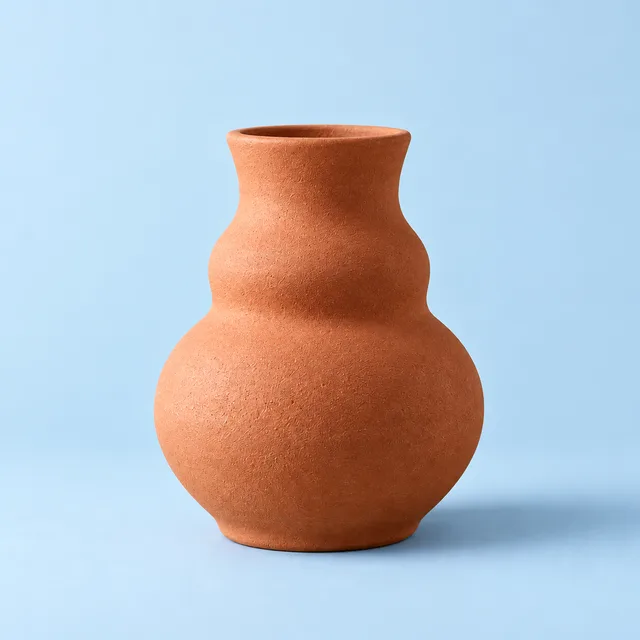
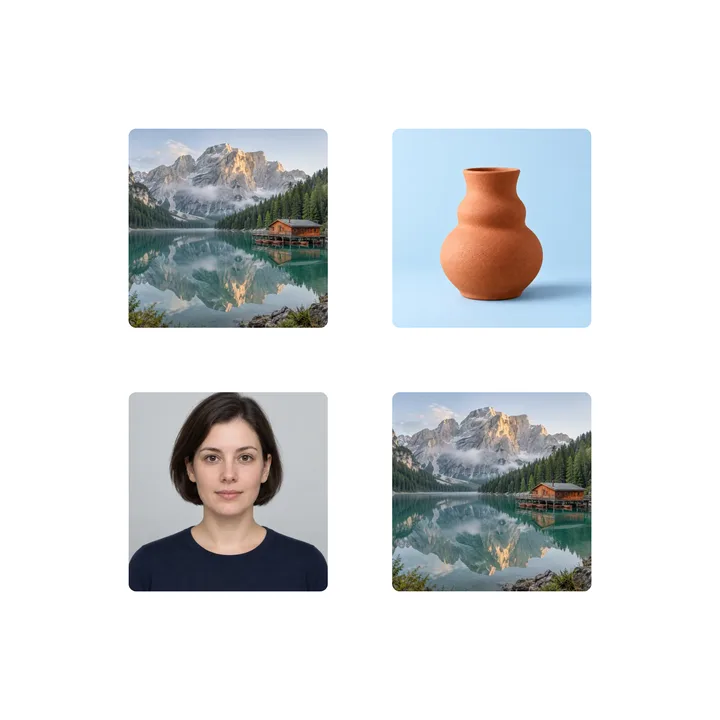
Photo Collage Maker · Example 1
These files were processed with this tool or its shared processing code. Compare the source, settings and downloadable results.

How to Make a Grid Collage
Pick a grid template
Choose a photo count template (1-20) and apply the grid layout.
Upload and reorder
Upload images and drag to reorder. Use preview to check the sequence.
Edit each cell
Crop, rotate, flip, and zoom each image. Apply filters and add text/arrow/sticker/mosaic annotations.
Adjust and export
Set spacing, margin, roundness, background, and canvas ratio, then export PNG/JPG.
How to Make a Long Collage
Choose a direction
Select vertical or horizontal long collage, supports up to 50 images.
Set alignment
Pick left/center/right or top/center/bottom alignment based on direction.
Fine-tune images
Drag to reorder, crop/rotate/flip/zoom, and add text/arrow/mosaic if needed.
Preview and export
Preview the result, choose PNG/JPG and export scale, then download.
How to Make a Freeform Collage
Pick a shape or set the grid
Tap a preset shape (heart, star, 520, LOVE) to get the outline, or set rows and columns yourself and start from a blank grid.
Refine the outline and merge cells
Carve cells out with the eraser and paint them back with the brush; drag a rectangular area to merge cells into a bigger one. Undo anytime.
Apply layout
Click Apply Layout to start editing the collage.
Edit and export
Edit images, add annotations, adjust spacing/background, and export PNG/JPG.
Collage Tips
Start with the right grid count
Pick a 1-20 photo grid template first so the collage layout is set quickly.
Set long direction and alignment
Use vertical for long screenshots or horizontal for panoramas, then choose alignment for clean edges.
Freeform merges must be rectangles
Make sure the selection fully covers existing blocks to avoid invalid layouts.
Drag to reorder faster
Reorder photos by drag and use preview to confirm the collage sequence.
Crop and zoom to align subjects
Crop, rotate, flip, and zoom each cell to keep subjects centered.
Tune spacing and background
Adjust spacing, margin, roundness, and background color for a polished collage.
Use annotations for clarity
Add text, arrows, stickers, or mosaic to explain steps or hide sensitive info.
Lock canvas ratio for output
Lock the ratio to match social sizes or poster layouts before export.
Preview before export
Preview the collage, then export PNG/JPG at the right scale.
Photo Collage Maker · More examples
These files were processed with this tool or its shared processing code. Compare the source, settings and downloadable results.
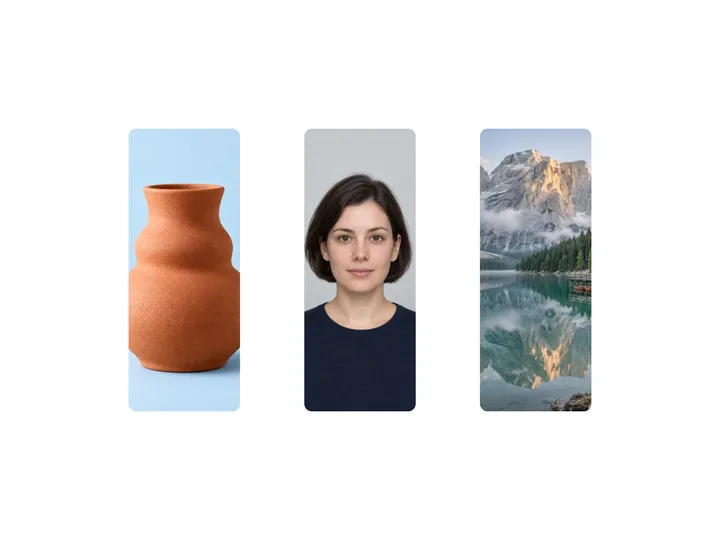
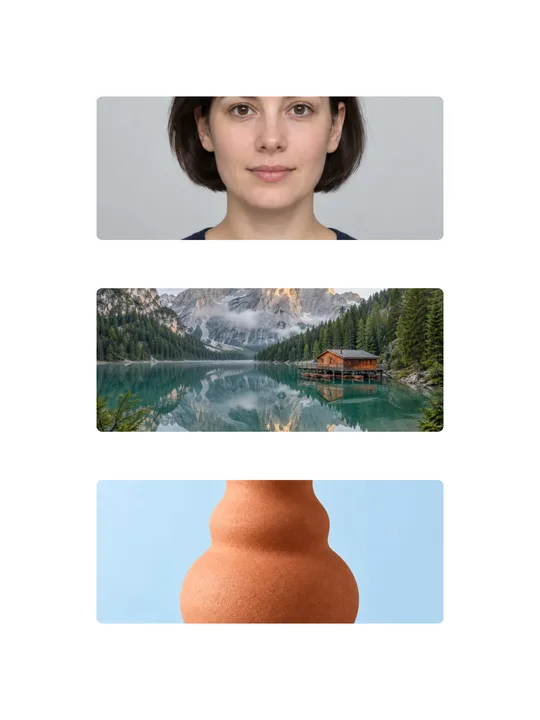
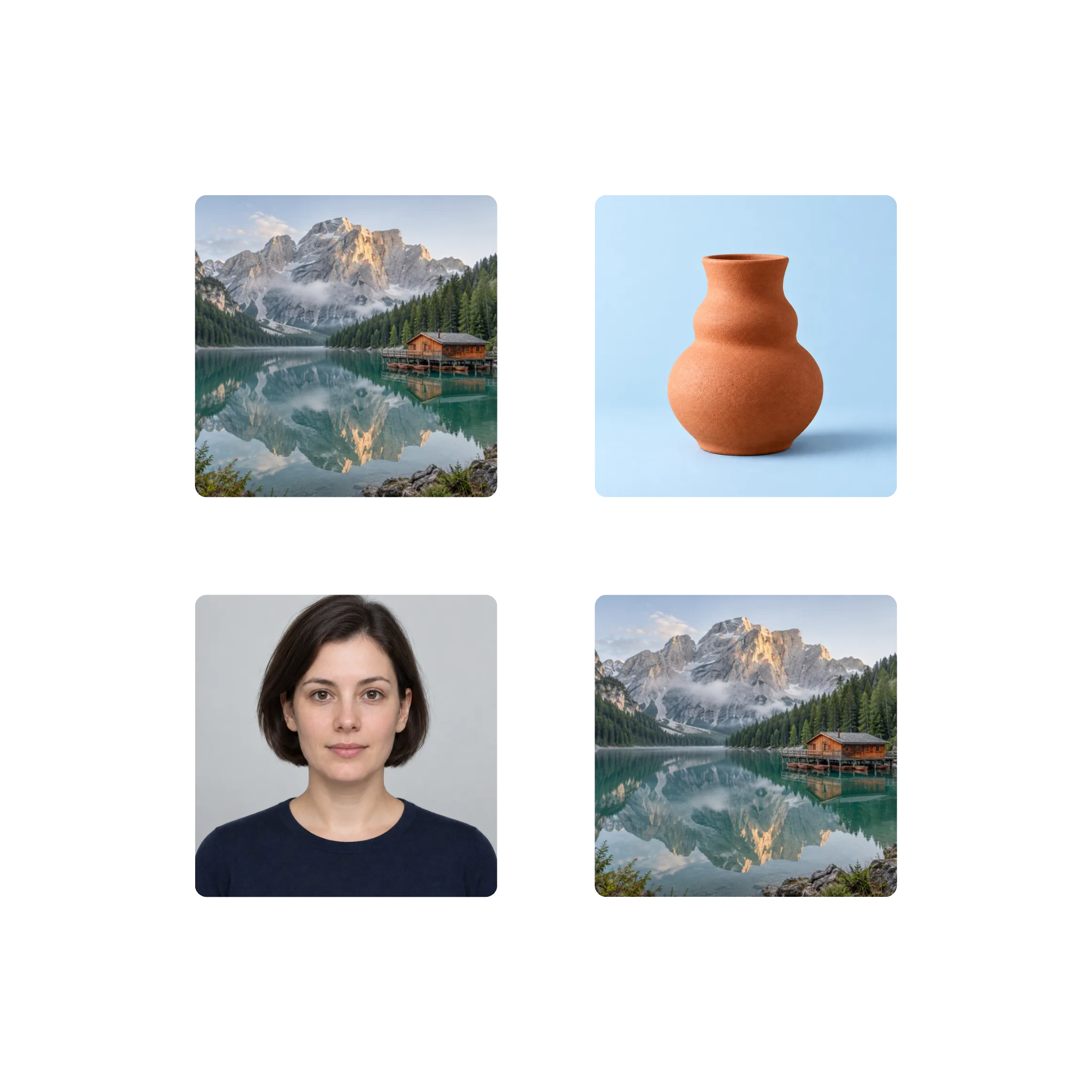
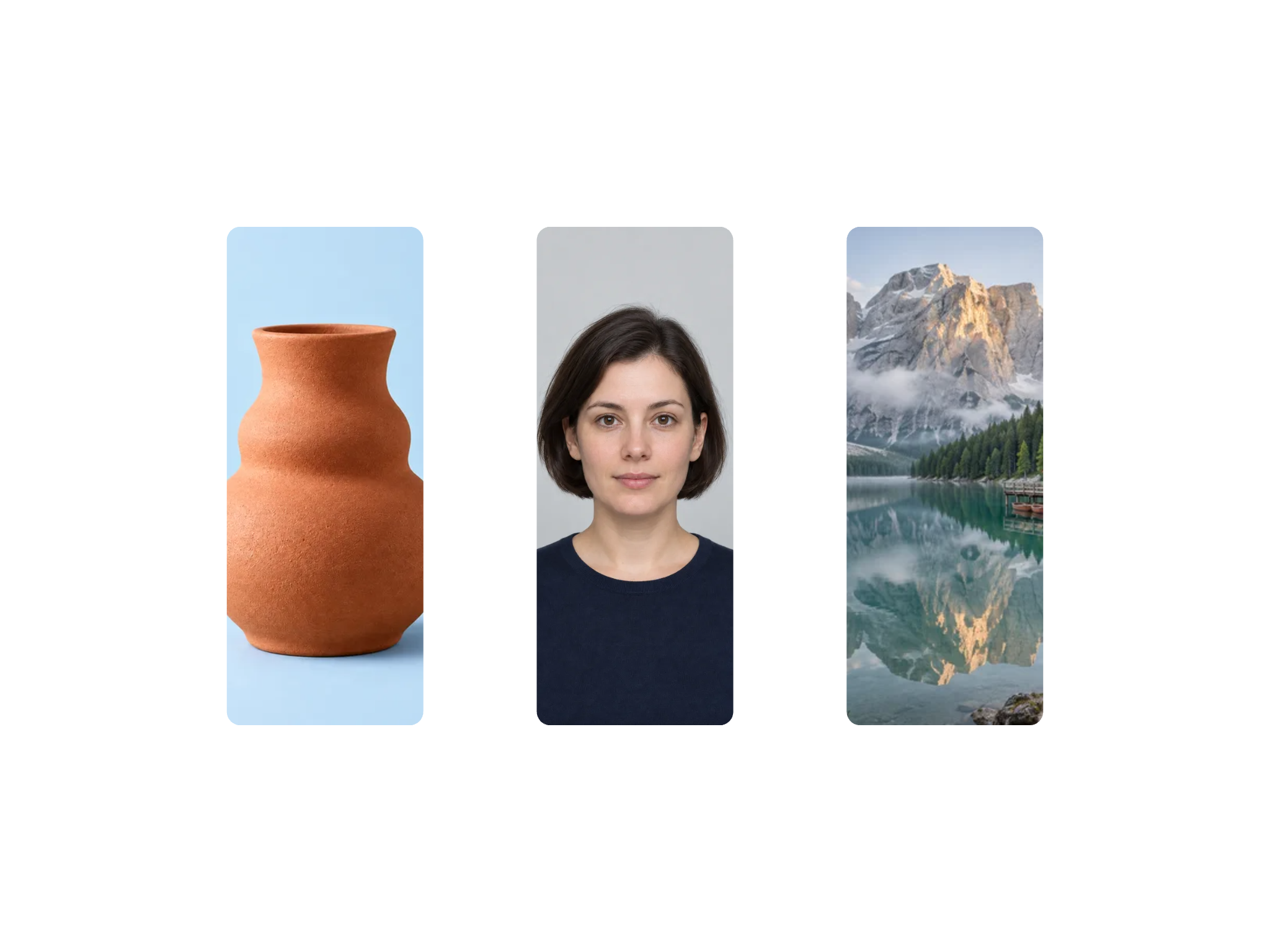
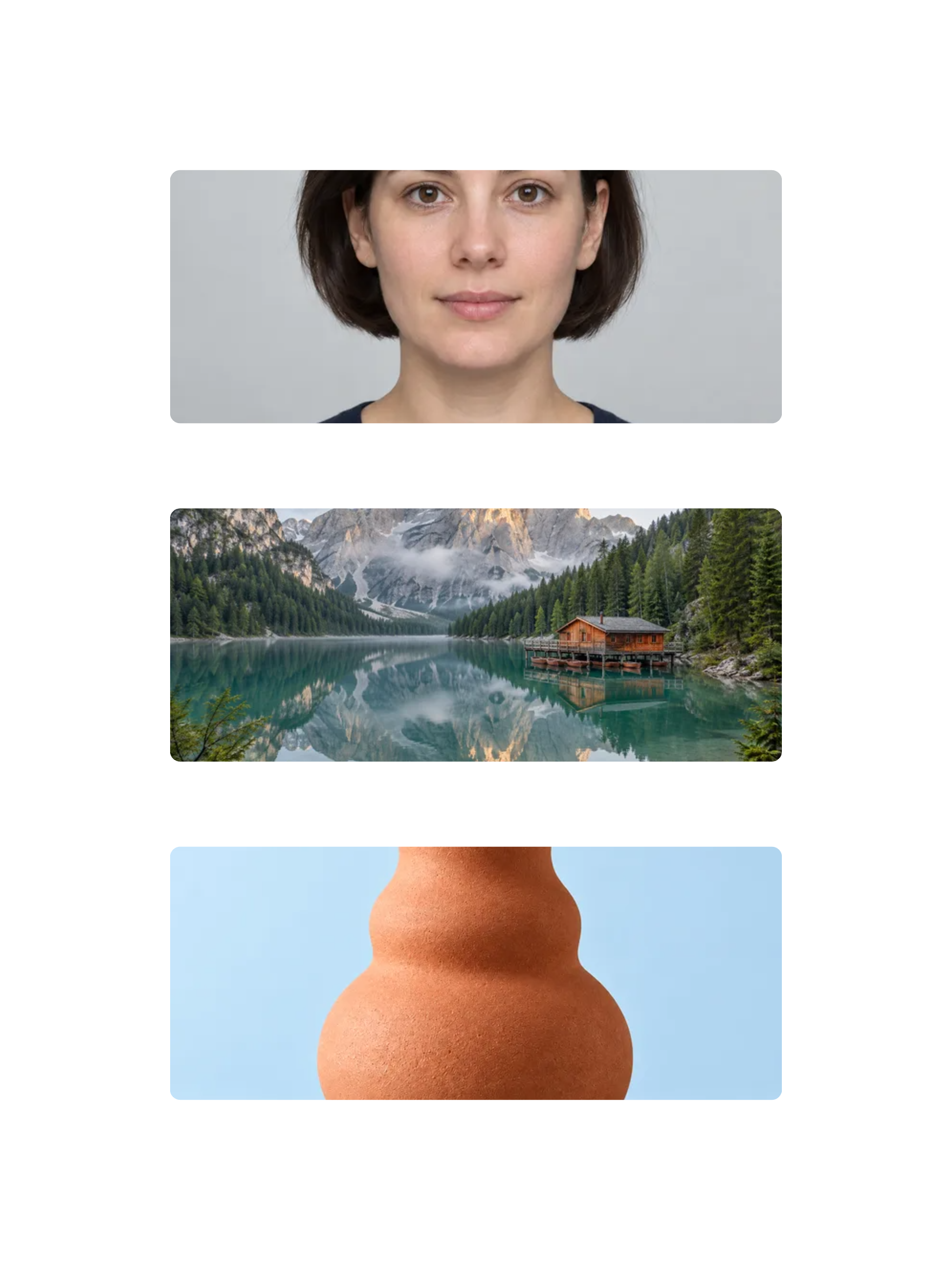
Image Collage Maker FAQ
More Image Tools
Need more image editing tools? Try these:
Image Watermark
Add a text or image watermark to one or several pictures. Adjust position, opacity, rotation and repetition, then review the exported files.
Image Mosaic
Cover selected areas of a photo with mosaic, blur or a solid color. Adjust the area and effect, then inspect the exported image before sharing.
Image Editor
Crop, rotate and resize a picture in your browser. Add text or shapes, draw on the image, and adjust colors before saving a copy.
Compress Image
Compress JPG, PNG and WebP images in your browser. Compare the output size and appearance before downloading individual files or a ZIP.